Actions and Stuff Setup Guide — Step-by-Step for Every Platform
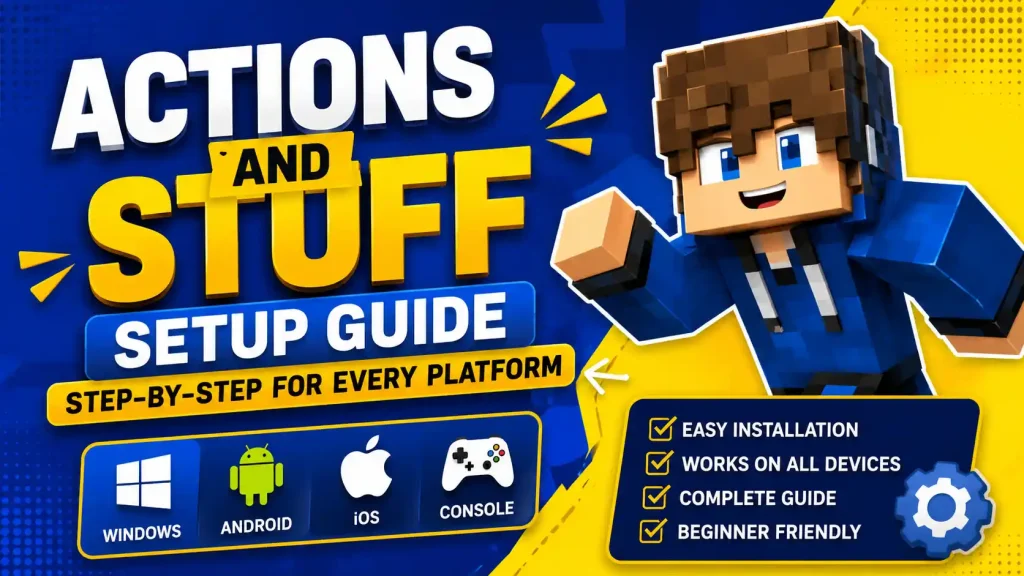
Downloaded the APK or MCPACK, but not sure what happens next? Almost every setup problem comes down to one of two things: the MCPACK doesn’t open Minecraft automatically, or the pack installs fine but animations don’t show because it’s sitting in Available Packs instead of Active. This guide walks through every platform in full, numbered detail — Android APK, MCPACK import on Android, iOS, and PC, and Marketplace activation for Xbox, PlayStation, and Switch — plus resolution settings, pack combinations, performance tuning, and backups.
Choose Your Platform
| Platform | Method | Difficulty | Time |
| Android | APK Install | Easy | 3 minutes |
| Bedrock (Manual) | MCPACK | Medium | 5 minutes |
| iOS | Marketplace | Easy | 5 minutes |
| Windows PC | MCPACK Import | Medium | 5 minutes |
| Xbox | Marketplace | Easy | 5 minutes |
| PlayStation | Marketplace | Easy | 5 minutes |
| Nintendo Switch | Marketplace | Easy | 5 minutes |
Setup for Android (APK)
The easiest method — one file includes everything preconfigured.
Step 1: Download the APK
Grab the file from the Android download page on this site. Keep your browser open until the download finishes.
Step 2: Enable Unknown Sources
Android blocks outside app installs by default.
Android 8.0 and newer:
- Open Settings
- Tap Apps or Applications
- Tap the three-dot menu (top right)
- Select Special Access
- Tap Install Unknown Apps
- Find your browser
- Toggle Allow From This Source on
Android 7.0 and older:
- Open Settings
- Tap Security
- Find Unknown Sources
- Toggle it on
- Confirm the warning
Step 3: Install the APK
- Open your file manager app
- Go to the Downloads folder
- Find the APK file
- Tap it
- Tap Install when prompted
- Wait for installation
- Tap Open when done
Step 4: Verify Installation
- Minecraft opens to the main menu
- Tap Settings (gear icon)
- Scroll to Global Resources
- Actions and Stuff should appear in Active Packs
If you see it listed, setup is complete.
Step 5: Choose Resolution
- In Global Resources, find Actions and Stuff
- Tap the gear icon next to the pack name
- Select a resolution — 32x works for most phones
- Exit settings and play
Setup for Bedrock (MCPACK)
For anyone who already has Minecraft Bedrock installed.
Step 1: Download the MCPACK
Grab the file from the Bedrock or PC download page on this site.
Step 2: Import the File
On Android:
- Open your file manager
- Find the MCPACK in Downloads
- Tap the file
- Minecraft opens automatically
- An import progress bar appears
- Wait for the “Import Successful” message
On iOS:
- Open the Files app
- Find the MCPACK file
- Tap and hold
- Select Share
- Choose Minecraft
- Wait for the import to finish
On PC:
- Find the MCPACK in your Downloads folder
- Double-click the file
- Minecraft opens and imports it
- Wait for confirmation
Step 3: Activate the Pack
- Open Minecraft
- Go to Settings
- Select Global Resources
- Find Actions and Stuff in the Available section
- Tap to move it to Active
- The pack is now enabled
Step 4: Configure Settings
- Tap the gear icon next to Actions and Stuff
- Choose a resolution mode
- Exit settings
- Create or load a world
- Enjoy the animations
Setup for iOS
iPhone and iPad players go through the Marketplace instead of a direct file.
Step 1: Check Your Minecoin Balance
Open Minecraft, tap Marketplace, and check your Minecoin balance in the top right. Purchase more if needed — pricing is set by Minecraft directly and can vary, so check the current cost in-app before buying.
Step 2: Find and Buy the Pack
- In Marketplace, tap the search icon
- Type “Actions and Stuff”
- Tap to open the pack’s listing page
- Tap Purchase and confirm
- The download starts automatically once purchased
Step 3: Activate the Pack
- Go to Settings
- Select Global Resources
- Find Actions and Stuff
- Tap to activate it
- Choose a resolution — 32x is a reasonable starting point on iOS
- Exit and play
Setup for PC
Windows 10 and 11 users running Minecraft Bedrock.
Step 1: Download the MCPACK
Grab the file from the PC download page and save it to Downloads.
Step 2: Import to Minecraft
Grab the file from the PC download page and save it to Downloads.
- Open the Downloads folder
- Find the MCPACK file
- Double-click it
- Minecraft Bedrock opens automatically
- Import begins immediately
- Wait for the success message
Manual import path (if double-clicking fails):
%localappdata%\Packages\Microsoft.MinecraftUWP_8wekyb3d8bbwe\LocalState\games\com.mojang\resource_packs
Copy the extracted pack folder to this location, then restart Minecraft.
Step 3: Activate and Configure
- Open Minecraft
- Go to Settings, then Global Resources
- Find Actions and Stuff in Available
- Move it to Active
- Click the gear icon for pack settings
- Choose your resolution
- Apply and play
Setup for Console (Xbox, PlayStation, Switch)
All three consoles use the Marketplace rather than a direct file install.
Xbox Setup
- Open Minecraft on Xbox
- Go to Marketplace
- Check your Minecoin balance and purchase more if needed
- Search “Actions and Stuff”
- Buy the pack
- Wait for the download
- Go to Settings, then Global Resources
- Activate the pack
- Choose a resolution
PlayStation Setup
- Open Minecraft on PlayStation
- Go to Marketplace
- Buy Minecoins through the PlayStation Store if needed
- Search “Actions and Stuff”
- Purchase the pack
- Download completes automatically
- Go to Settings, then Global Resources
- Activate the pack
- Set your resolution
Nintendo Switch Setup
- Open Minecraft on Switch
- Go to Marketplace
- Purchase Minecoins through the Nintendo eShop if needed
- Search “Actions and Stuff”
- Buy the pack
- Wait for the download
- Go to Global Resources
- Activate the pack
- Choose a resolution — lower tiers suit handheld mode, higher tiers suit docked mode
Resolution Settings Explained
Every resolution includes the same animations — only texture detail and performance cost change.
16x
Best for: Budget and older phones, devices with 2GB RAM or less. Lightest load on your device, smoothest performance.
32x
Best for: Mid-range phones, most PCs, and most users generally. The recommended default and the best balance of detail and performance.
64x
Best for: High-end phones (2022 or newer), gaming PCs, and devices with 6GB RAM or more. Sharpest textures, heaviest resource use.
To change resolution: Settings, then Global Resources, find Actions and Stuff in Active, tap the gear icon, select a new resolution. Changes apply immediately.
Global Resources vs World Resources
There are two different ways to apply a resource pack in Minecraft, and mixing them up is a common source of confusion.
Global Resources:
- Applies to all worlds automatically
- Set once, works everywhere
- Found in the main Settings menu
- Recommended for Actions and Stuff
World Resources:
- Applies to one specific world only
- Must be set individually for each world
- Overrides your global settings for that world
- Found inside that world’s own edit settings
Using Global Resources means you never have to reactivate the pack each time you start a new world — set it once, and it works everywhere going forward.
Combining with Other Packs
Actions and Stuff works fine alongside most texture packs, with a few exceptions worth knowing.
Generally compatible (load below Actions and Stuff):
- Simple, vanilla-style texture packs
- Most default-style 16x texture packs
- Sound packs and skin packs
Best kept separate or tested carefully:
- Other animation-focused packs (conflicting animation files are the most common cause of glitches)
- Behavior packs that modify entity mechanics
- Heavy shader packs on lower-end mobile devices
Load order: In Minecraft’s Global Resources list, the pack positioned at the Top has the highest priority, while packs higher up get overridden by anything below them. Keep Actions and Stuff at the Top of your active list so nothing overrides its animation files.
Performance Optimization
A few settings adjustments help on lower-end devices regardless of which resolution you choose:
- Reduce render distance — drop from the default down to 8–10 chunks under Settings, then Video
- Turn off Fancy Graphics — disable Fancy Leaves and Beautiful Skies, and set Graphics to Fast
- Close background apps — frees up RAM and reduces overheating on mobile
- Enable VSync — prevents screen tearing and stabilizes frame rate
- Cap your frame rate on mobile — around 30 FPS saves battery and reduces heat buildup
- Match resolution to your device — this one setting affects performance more than anything else on this list
Common Setup Problems and Solutions
Pack Not Importing
Problem: The MCPACK file doesn’t open Minecraft.
- Confirm Minecraft Bedrock is actually installed
- Reinstall Minecraft from the official store if needed
- Clear Minecraft’s cache
- Restart your device
- Redownload the file in case it was corrupted
Animations Not Showing
Problem: The pack is installed, but nothing looks different.
- Check that the pack is in Active, not Available
- Move it to the bottom of the Active list (highest priority)
- Disable any conflicting packs
- Confirm your Minecraft version is current
- Restart Minecraft completely
Performance Issues
Problem: Lag, frame drops, or overheating.
- Switch to a lighter resolution tier
- Lower render distance to 8 chunks
- Disable Fancy Graphics
- Close background apps
- Remove other resource packs temporarily
- Let the device cool down before continuing
Skin Display Problems
Problem: Your player skin looks broken or incorrect after activating the pack.
- This mainly affects certain custom skin formats
- On PC, this can sometimes be adjusted by editing the pack’s player entity file directly
- If you’re not comfortable editing pack files, switching to a standard Steve or Alex skin resolves it immediately
Multiplayer Setup
Regular Servers
Actions and Stuff works on any Bedrock server without special setup, since it’s entirely client-side.
- Only you see the animations
- Other players see standard Minecraft
- No server-side installation needed
- Works on any server without configuration
Realms Setup
Personal use: Enable the pack in your own Global Resources, then join the Realm as usual — only you will see the animations, and other members see their own normal visuals.
Realm-wide (owner only): Open Realm settings, go to Resource Packs, and add Actions and Stuff there. Every member needs to download it, after which everyone sees the animations.
Backing Up Your Worlds
Always back up before making major setup changes.
Android worlds folder:
/storage/emulated/0/Android/data/com.mojang.minecraftpe/files/games/com.mojang/minecraftWorlds
Windows worlds folder:
%localappdata%\Packages\Microsoft.MinecraftUWP_8wekyb3d8bbwe\LocalState\games\com.mojang\minecraftWorlds
iOS: Use a Finder or iTunes backup, or enable iCloud backup for Minecraft directly.
To back up: navigate to the worlds folder, copy the entire folder, and paste it somewhere safe — cloud storage or an external drive both work. Restore later by copying it back.
Updating the Pack
MCPACK users: download the new file from this site, import it, then in Global Resources remove the old version from Active and activate the new one. Deleting the old version afterward is optional.
APK users: download the new APK and install it over the existing app. Your worlds and settings are preserved, and the new version activates automatically.
Major feature updates tend to arrive every few months, with smaller compatibility patches following any Minecraft update — check the download page on this site periodically for the current build.
Setup Complete
At this point, Actions and Stuff should be installed, activated, and running at a resolution that matches your device. From here, the Guide page on this site covers the full feature breakdown and general FAQ, while the Features & Easter Eggs page documents every hidden name tag and secret the pack includes.