Actions and Stuff for iOS — How to Get It on iPhone and iPad
Downloaded the APK or MCPACK on your iPhone and nothing happens when you tap it? That’s not a broken file — iOS simply doesn’t allow it. Apple’s operating system blocks external game files from being installed the way Android and Windows do, so an action and stuff iOS download works through a completely different path: the Minecraft Marketplace. Here’s why, and exactly how to get it running on your device.
Why Can’t I Install the APK or MCPACK on iOS?
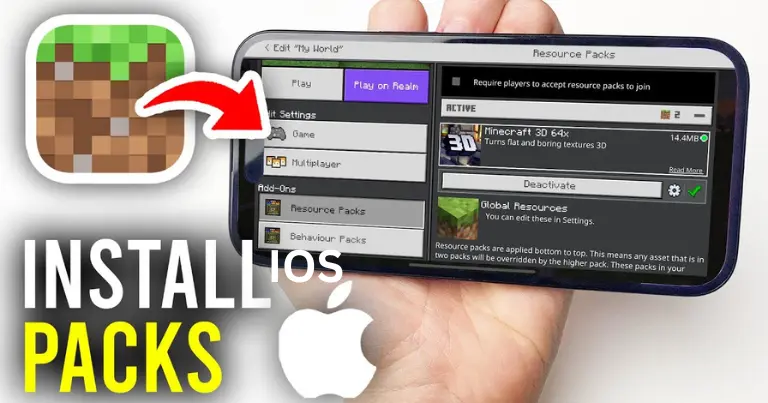
Apple’s iOS is a closed platform by design — apps and games can’t accept outside files the way Android apps often can. This isn’t specific to Minecraft or to Actions and Stuff; it’s the same reason iPhone users can’t sideload most third-party content across any app. Minecraft’s own workaround for this restriction is the Marketplace, an in-game store where iOS and console players purchase add-ons, resource packs, and worlds directly rather than importing an outside file.
Because of this, an actual action and stuff iOS APK or MCPACK simply isn’t an installable option on iPhone or iPad, regardless of where you download it from — and the same applies to any action and stuff addon iOS file you might find referenced online.
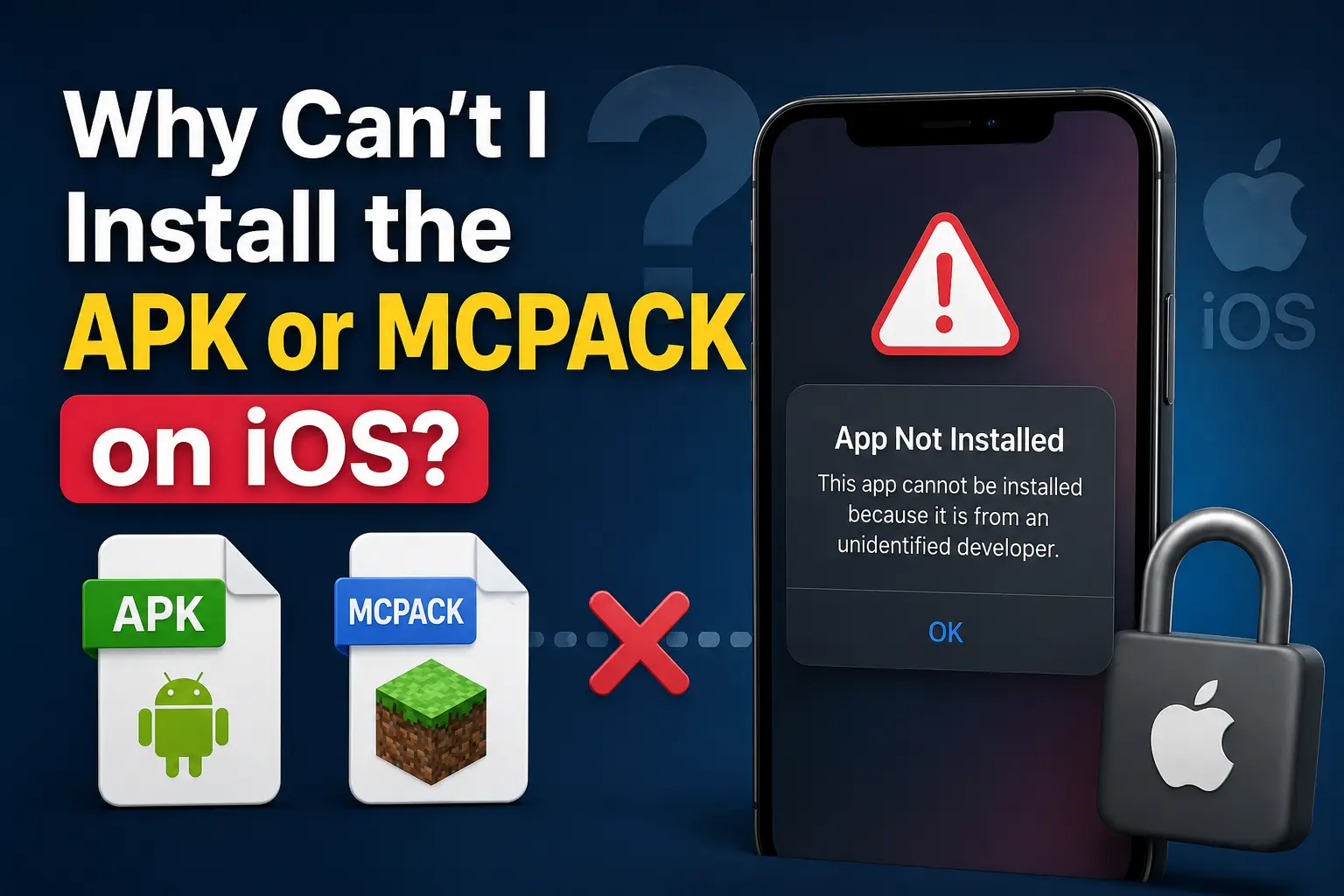
How to Get Actions and Stuff on iOS via Minecraft Marketplace
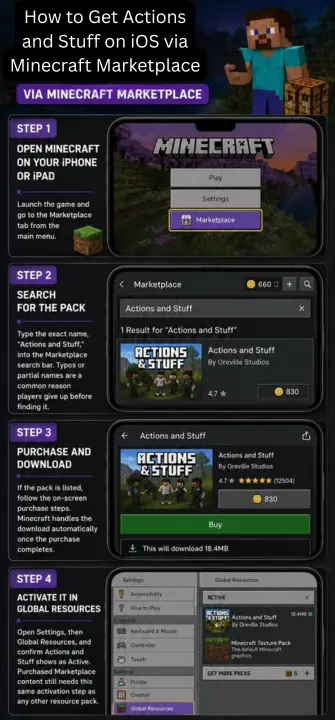
Step 1: Open Minecraft on Your iPhone or iPad
Launch the game and go to the Marketplace tab from the main menu.
Step 2: Search for the Pack
Type the exact name, “Actions and Stuff,” into the Marketplace search bar. Typos or partial names are a common reason players give up before finding it.
Step 3: Purchase and Download
If the pack is listed, follow the on-screen purchase steps. Minecraft handles the download automatically once the purchase completes.
Step 4: Activate It in Global Resources
Open Settings, then Global Resources, and confirm Actions and Stuff shows as Active. Purchased Marketplace content still needs this same activation step as any other resource pack.
Is Actions and Stuff Free on iOS?
Not in the same way it is on Android or PC. Since Apple’s platform doesn’t allow direct file imports, third-party Bedrock content on iOS is generally only available by purchasing it through the Marketplace with Minecoins, rather than as a free outside download. We can’t confirm a specific price or guarantee current Marketplace availability for this exact pack from here, since Marketplace listings and pricing are controlled entirely by Minecraft and can change — check the Marketplace search directly on your device for the current listing and price before assuming a cost.
Version Compatibility for iOS
| Search Term | Compatibility |
| Action and stuff 1.4 iOS | Supported in early builds, subject to Marketplace listing availability |
| Action and stuff 1.5 iOS | Supported, subject to Marketplace listing availability |
| Action and stuff 1.8 iOS | Supported, subject to Marketplace listing availability |
| Action and stuff 1.9 iOS | Most commonly referenced version pairing |
Marketplace content updates on its own schedule set by Minecraft, so the version available to purchase may not always match the newest MCPACK or APK builds covered elsewhere on this site.
Troubleshooting iOS Installation Issues
Purchased But Not Showing in Global Resources
Go to Settings, then Storage, inside Minecraft and check whether the pack shows as downloaded. If it’s there but not in Global Resources, delete it and redownload from your Marketplace purchases library.
Activated But No Animations Visible
Force-close Minecraft completely — swipe up and remove it from your app switcher — then reopen the game, recheck Global Resources, and load into a world again.
Can’t Find It in Marketplace Search
Double-check the exact spelling, “Actions and Stuff,” and try searching without “the” or extra words. Marketplace search can be picky about exact matches.
Frequently Asked Questions
Conclusion
iOS handles Actions and Stuff differently from Android and PC simply because Apple doesn’t allow the same kind of file imports — the Marketplace is the only real path in. Search for it by exact name in-game, complete the purchase if it’s listed, and activate it in Global Resources the same way you would any other resource pack.